
Are you looking to convert YouTube videos into high-quality WAV audio files? Whether you’re an audiophile, a music producer, or simply someone who prefers uncompressed audio, converting YouTube videos to WAV format can be very useful. In this blog post, I’ll walk you through everything you need to know about YouTube to WAV conversion — step by step — using both online tools and software. Let’s get started!
Why Convert YouTube to WAV?
You might wonder, why bother converting YouTube to WAV instead of using MP3, which is more common?
Here are some good reasons:
- Higher Sound Quality: WAV files are uncompressed and retain the full fidelity of the original audio.
- Ideal for Editing: If you’re editing audio, WAV is a better choice because it doesn’t lose quality with each edit.
- Compatibility with Professional Tools: WAV files work well with DAWs (Digital Audio Workstations) like FL Studio, Ableton Live, or Audacity.
While WAV files are larger in size, they offer superior sound quality, which is essential for professionals or serious music lovers.
How to Convert YouTube to WAV: [Stepwise Guide]
1. Copy the YouTube Video URL
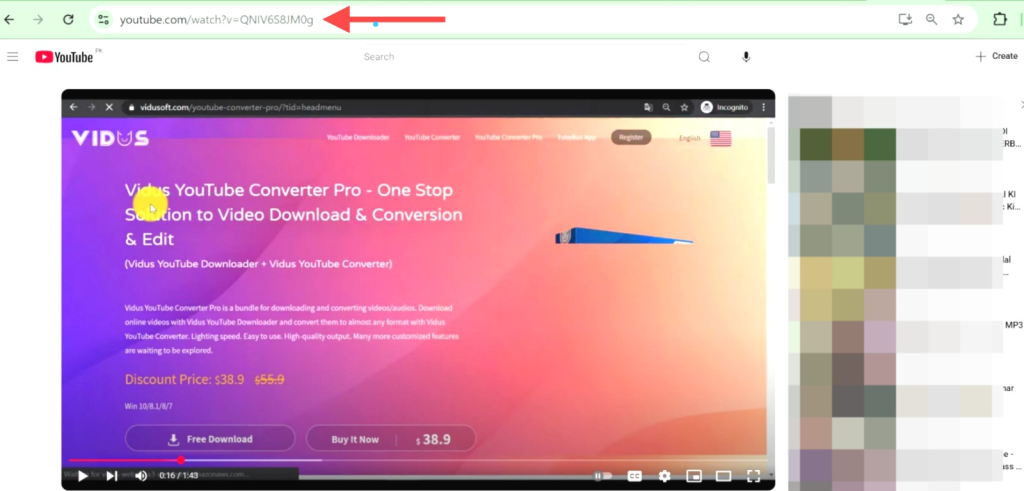
First, visit YouTube and look for the video you wish to convert. Copy the URL from the address bar. This link will be used to extract the audio.
2. Choose a YouTube to WAV Converter
There are several free and paid tools online that let you convert YouTube videos into WAV files. Below are some popular and reliable options:
Online Tools:
- YTMP3.cc (Choose WAV as output)
- OnlineVideoConverter.com
- Media.io
- Y2Mate
Desktop Software:
- 4K Video Downloader
- Any Video Converter
- Freemake Video Converter
For more control and better quality, I personally recommend using 4K Video Downloader or Media.io.
3. Paste the URL into the Tool
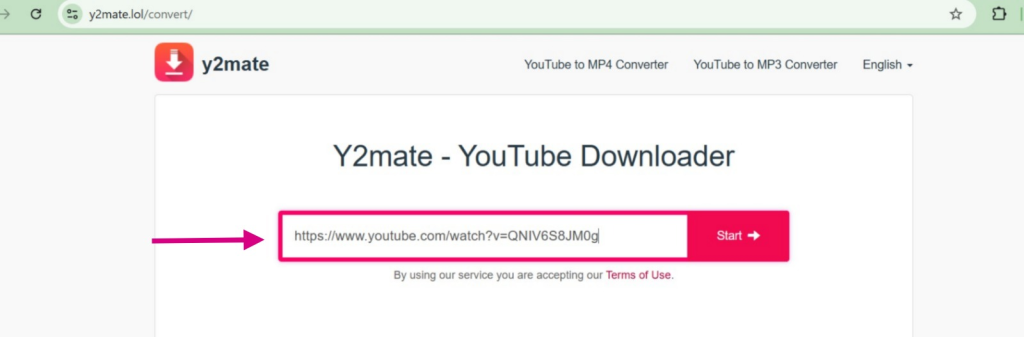
Once you choose a tool, paste the copied YouTube link into the search bar or input field. Some tools automatically detect and process the link within seconds.
4. Select Output Format (WAV)
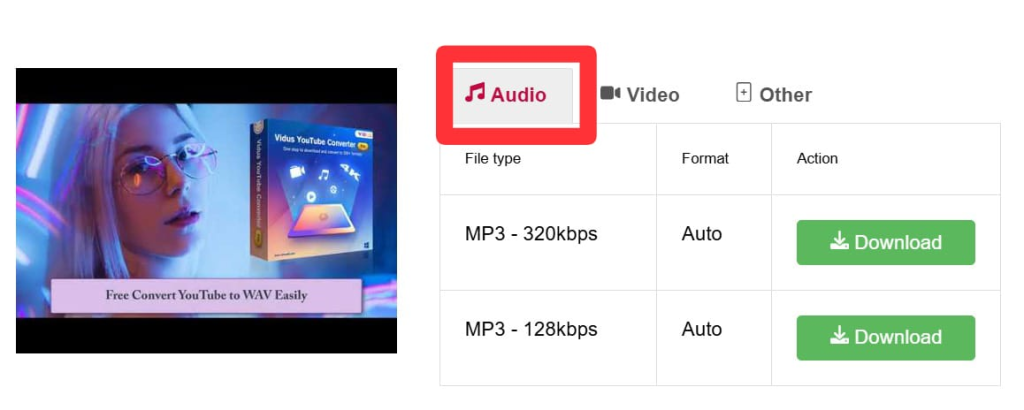
Ensure that you choose WAV as the final audio format. Some tools default to MP3, so change it manually to WAV before downloading.
5. Convert and Download the File
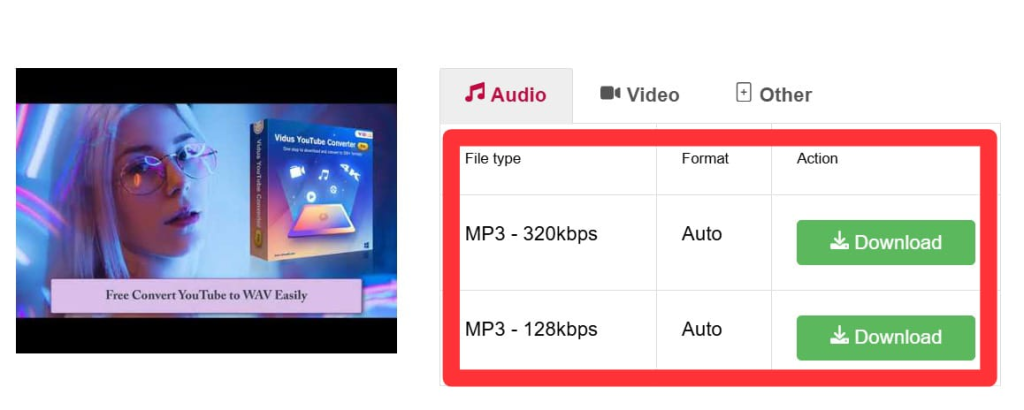
Click on the “Convert” or “Start” button. The tool will analyze the video and pull out the audio. This usually takes a few seconds to a couple of minutes, depending on the file size and internet speed.
Once done, you’ll be able to download the WAV file to your computer or device.
Pros and Cons of Using Online Converters
Here’s a quick rundown of the advantages and limitations of online tools:
✅ Pros:
- No software installation needed
- Fast and easy
- Free to use
❌ Cons:
- Some sites may have ads or pop-ups
- Limited to shorter videos on free versions
- Quality may not always be 100% reliable
Tips for a Better Conversion Experience
- Always use trusted websites to avoid malware or unwanted downloads.
- Check the audio settings if you’re using software like 4K Video Downloader – you can set bitrate, sample rate, and audio channels.
- Use antivirus protection while browsing unknown converter sites.
- Avoid copyright violations by downloading only content you have rights to use or for personal use.
Is Converting YouTube to WAV Legal?
This is a common question.
The short answer is: It depends. Downloading and converting YouTube videos that are your own or labeled for free use is fine. However, downloading copyrighted music or videos without permission may violate YouTube’s terms of service or local copyright laws.
Use these tools responsibly and ethically.
Final Thoughts
Converting YouTube to WAV is a simple yet powerful way to get high-quality audio for your music projects, podcasts, or offline listening. Whether you’re a content creator, a DJ, or just want better sound quality, WAV files are worth the extra file size.
If you’re serious about audio, I recommend using desktop tools like 4K Video Downloader for better control over audio quality. But for quick conversions, online tools like Media.io work just fine.
Have you tried converting YouTube to WAV before? Share your experience or favorite tool in the comments below!
Thanks for reading! If you found this guide helpful, consider bookmarking my blog or sharing this post with your friends. Happy listening! 🎧